How I managed to get a Bluetooth connection working on Linux (POP OS & Ubuntu).
First things first: make your user is in the dialout group:
sudo usermod -aG dialout $USERLog out or restart for the changes to take effect.
I had no luck with the subsurface bluetooth interface and had to pair & trust the device manually through bluetoothctl
bluetoothctlIf you now put your dive computer in bluetooth mode you should start seeing it advertise itself in the console as shown
[NEW] Device 00:13:43:##:##:## Petrel
[bluetooth]# [CHG] Device 00:13:43:##:##:## RSSI: 0xffffffc6 (-58) # <-- This is the device we are interested in
[bluetooth]# [CHG] Device 00:13:43:##:##:## RSSI: 0xffffffbe (-66)
copy the MAC address and enter the following two lines (still in bluetoothctl commandline)
pair 00:13:43:##:##:##You will be prompted to enter a pin (0000).
You should then see something like the following:
[bluetooth]# pair 00:13:43:##:##:##
Attempting to pair with 00:13:43:##:##:##
[CHG] Device 00:13:43:##:##:## Connected: yes
[Petrel]# Request PIN code
[Petrel]#   1;39m[agent] Enter PIN code: 0000 <--- enter pin
[Petrel]# [CHG] Device 00:13:43:##:##:## Bonded: yes
[Petrel]# [CHG] Device 00:13:43:##:##:## UUIDs: 00001101-0000-1000-8000-############
[Petrel]# [CHG] Device 00:13:43:##:##:## ServicesResolved: yes
[Petrel]# [CHG] Device 00:13:43:##:##:## Paired: yes
[Petrel]# Pairing successful
then enter
trust 00:13:43:##:##:##Petrel]# [CHG] Device 00:13:43:##:##:## Trusted: yes
[Petrel]# Changing 00:13:43:##:##:## trust succeeded
[Petrel]# [DEL] Device C8:6C:3D:##:##:## C8-6C-3D-##-##-##
[Petrel]# [CHG] Device 00:13:43:##:##:## ServicesResolved: noThat’s it, that should be all the command line needed.
- Open Subsurface
import > import from Dive computerorCTRL+Dto open the import dialog. - Select Shearwater from the manufacturer drop-down
- Select Petrel (or your own computer model)
- Click on the
...next toChoose Bluetooth download mode - you should see the dialog shown below:
bluetooth.src==
bluetooth.src==
bluetooth.src==
- You should now see that the device or mount point field is populated with the correct device. And
Choose Bluetooth download modeis checked. - Click download and new dives should start appearing in the pane on the right.
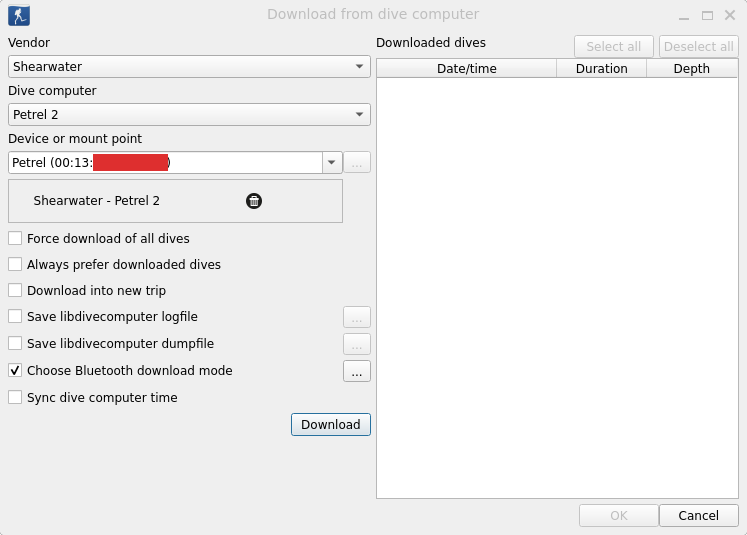
After this I was able to import dives normally. One quirk I have noticed is that if I merge two dives (short surfacing in the dive) subsurface will always import all segments again if this is the last dive in the log as it doesn’t seem to recognize that they have already been downloaded.
Subsurface dive log is available here for the unbeatable price of free: https://subsurface-divelog.org